KVM Installation and Configuration Issues
This section lists possible errors and their resolution.
Error Messages
command not found
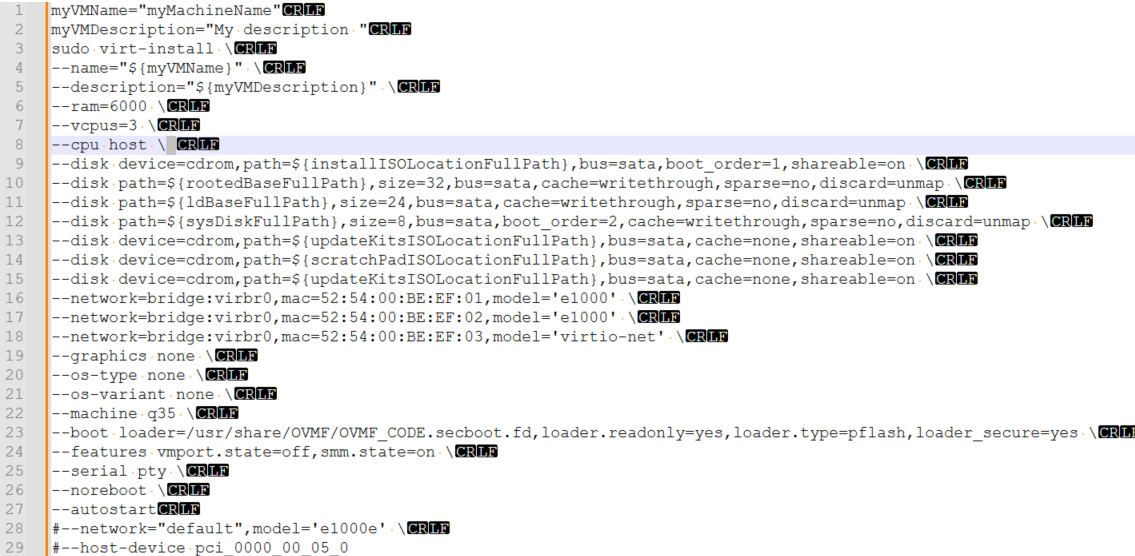
When running the virt-install command, one of the parameters returns something like this:
--memory=8192: command not found
This is most commonly caused by an erroneous space character after a backslash. This has been replicated below with hidden characters enabled for better visualization (see line 8):
No ACPI MCFG table was found. This processor may not have a PCIe configuration space.
This error message usually indicates that the wrong chipset was selected:
%%%%%%%%%%% VSI OpenVMS (tm) x86-64 Console %%%%%%%%%%%
_______________________________________________
      THE GUEST CONSOLE HAS BEEN SUSPENDED
     USE A TERMINAL UTILITY FOR OPA0 ACCESS
_______________________________________________
No ACPI MCFG table was found.  This processor may not have a PCIe configuration space.

VSI Primary Kernel SYSBOOT
%SYSBOOT-F-NOPXML, The PXML database could not be initialized
%SYSBOOT-F-NOINITMMMG, Unable to initialize SYSBOOT memory management, status = 00000124
This can be resolved by editing the virtual machine XML as described below in the section called Rainbow Screen.
(virt-manager:54736): Gtk-WARNING **: 08:42:13.294: cannot open display:
When connecting to a virtual machine via SSH and using the virt-manager command, the Virtual Machine Manager GUI does not open.
This can be resolved by setting up X11 forwarding on your system or in a terminal emulator.
Rainbow Screen
Your screen looks like this when your virtual machine launches:
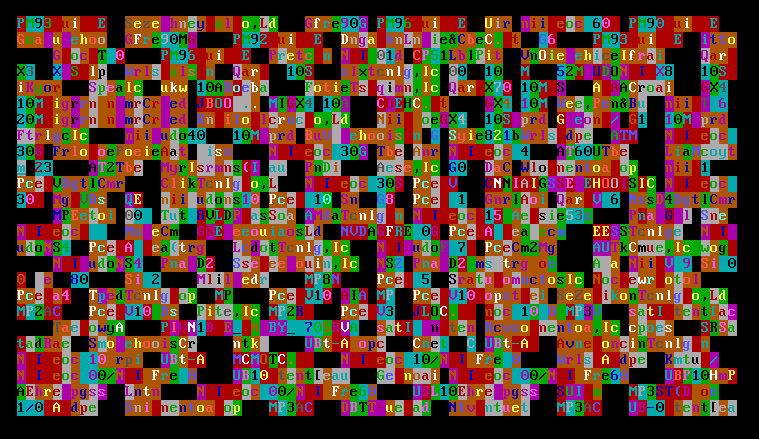
This happens because of an incorrectly selected chipset option when configuring the virtual machine.
This can be resolved by running the following command:
virt-xml vm-name --edit --convert-to-q35Alternatively, you can manually edit your VM XML configuration file. Make sure that the <os> element is specified in the following way:
<os firmware="efi">
  <type arch="x86_64" machine="pc-q35-8.2">hvm</type>
.
.
.
</os>
Non-Persistent Device Boot Order
Due to a bug in KVM, as of libvirt version 9.7.0, changes made to the device boot order in UEFI are not persistent after the VM is restarted. Detailed description of the issue can be found at the following link: libvirt issue.
The workaround suggested by the KVM community to avoid the non-persistent boot order issue involves the utilization of a non-present floppy disk device (fd) as the default boot option. The procedure depends on whether or not you have already created a virtual machine.
-
Edit the XML configuration of your KVM virtual machine and add
<boot dev='fd'/>inside the<os>element. Make sure to remove other boot device specifications, for example:<boot dev='cdrom'/>,<boot dev='hd'/>, etc.For information on how you can edit your VM XML configuration, refer to Customizing Your KVM Virtual Machine.
-
Reboot your VM for the changes to take effect.
When running virt-install to set up a new virtual machine, specify the --boot fd option and make sure to remove any boot_order=n specifications.
See example in Creating a KVM Virtual Machine.
System Time Syncronization
When a KVM VM is powered on, the system time is set based on the value of the CLOCK OFFSET parameter in the VM configuration file. The default value is utc.
Depending on the physical location of the host system, this might lead to differences between system times of the VM and the host.
To resolve this problem, use the virsh edit command to edit the XML configuration file of your virtual machine and change the value of the CLOCK OFFSET parameter to localtime, like so:
<clock offset='localtime'>
For more information, see the official documentation for your Linux distribution.
Starting with the E9.2-4 release, VSI OpenVMS provides tools to synchronize time between a VM and a host system. Refer to the Synchronizing Time Between an OpenVMS Virtual Machine and a Host System section for details.