Connecting to the OpenVMS Console
You can connect to your OpenVMS KVM virtual machine using the methods discussed in this section.
Info
You need the Virtual Machine Manager GUI installed on your system and graphics enabled in your VM to be able to use the Guest Console.
-
Open Virtual Machine Manager either from the Application Launcher or by running the
virt-managercommand in your CLI. A new window will open. -
Double-click the VM where you wish to start the Guest Console. The Guest Console will open in a new window.
-
At the
BOOTMGR>prompt, enterOPA0to connect to the operator terminal.
For more information about the Guest Console, refer to the VSI OpenVMS x86-64 V9.2-3 Installation Guide and the VSI OpenVMS x86-64 Boot Manager User Guide.
Use the following command to connect to the OpenVMS operator terminal:
sudo virsh console vm-nameFollow the steps below to connect to your KVM virtual machine via Telnet using a terminal emulator.
-
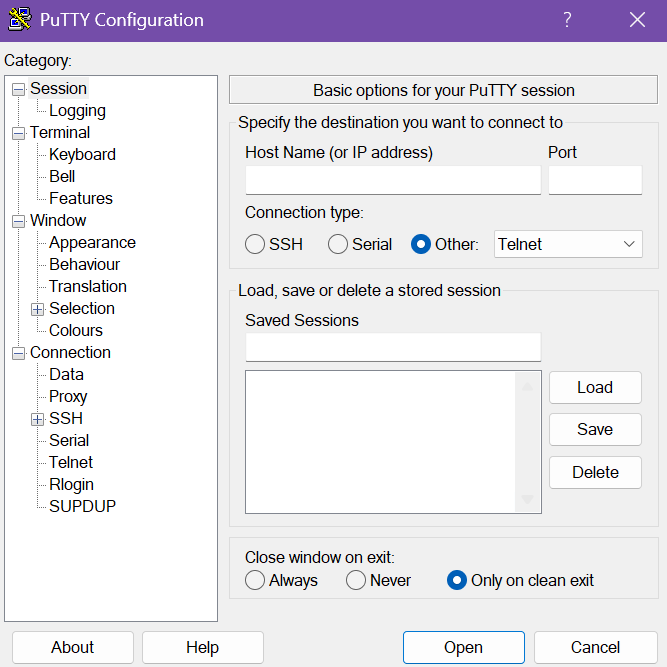
Open your terminal emulator (e.g. PuTTY) and specify the IP address and port of your virtual machine.
Note
The following steps contain examples of how to configure the PuTTY terminal emulator.
While VSI tests with PuTTY, other terminal utilities can also be used, but may have different restrictions and incompatibilities.
-
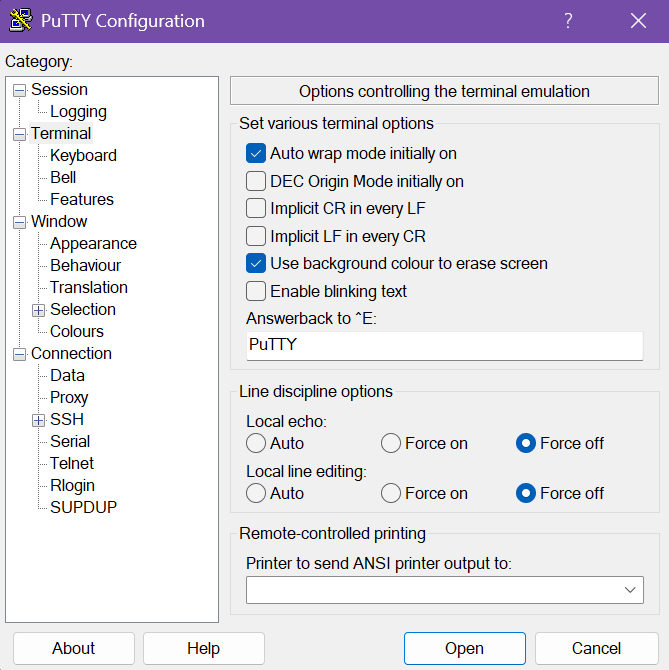
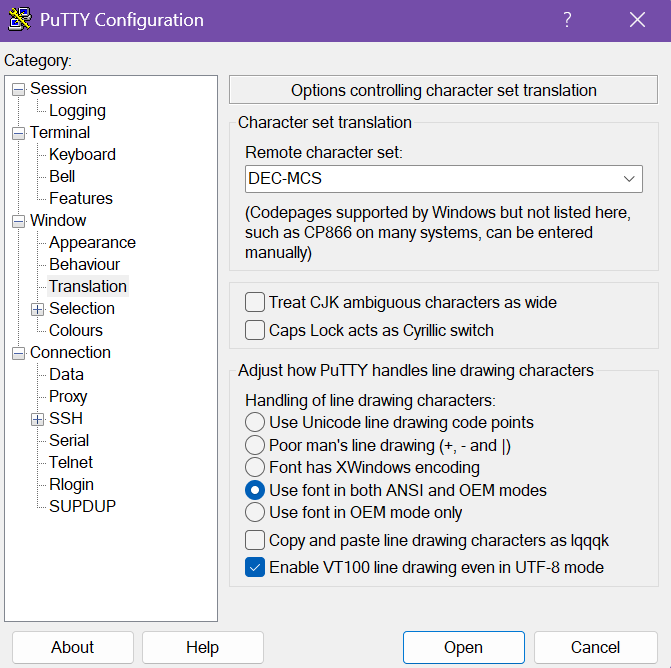
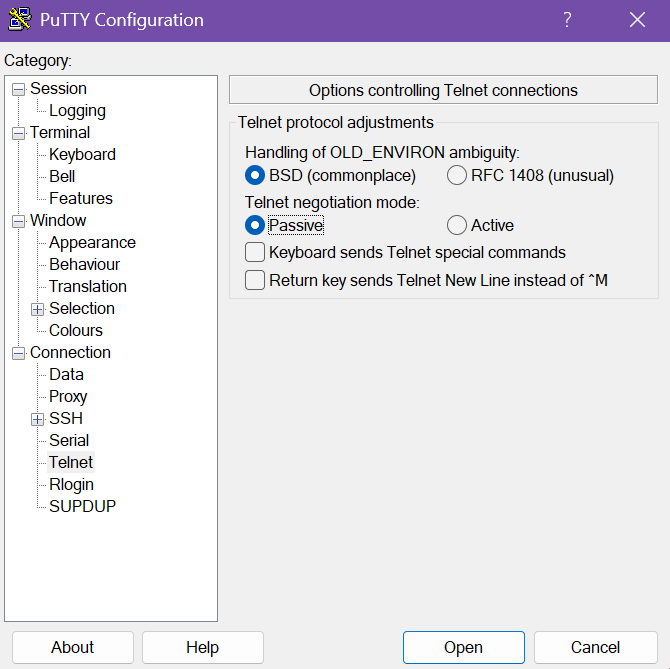
Edit your terminal emulator settings as specified below:
- Connection type: Telnet
- Implicit CR in every LF: Unchecked
- Implicit LF in every CR: Unchecked
- Local echo: Force off
- Local line editing: Force off
- Remote character set: DEC-MCS
- Enable VT100 line drawing even in UTF-8 mode: Checked
- Telnet negotiation mode: Passive
- Return Key Sends Telnet New Line instead of ^M: Unchecked
-
Click Open.