Preparing to Create a VMware ESXi Virtual Machine
Downloading the VSI OpenVMS x86-64 ISO
Download the archive containing the VSI OpenVMS x86-64 operating environment image file (ISO) from the VSI Service Portal. Unzip it and copy the ISO file to a location locally accessible to the browser that you will use to connect to the ESXi Host Client.
Creating a Datastore in the ESXi Host Client
Before you create your virtual machine, you must create a datastore.
-
In the browser, enter the ESXi host IP address to bring up the ESXi Host Client. At the login screen, enter your credentials (created during the ESXi installation) and click Log in.
-
In the left pane of the VMware ESXi window, go to Navigator > Storage. In the right pane, click New datastore.
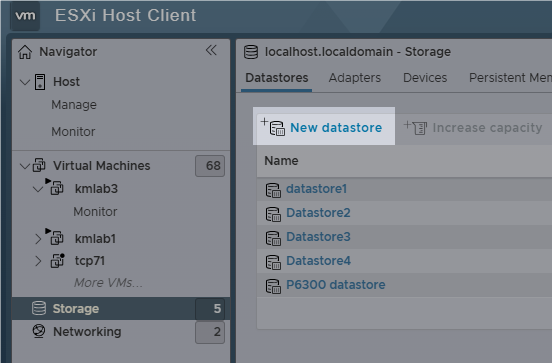
A new window will pop up.
-
The New datastore wizard will guide you through the steps necessary to create a datastore.
-
Select creation type: Make sure that the Create new VMFS datastore option is selected and click Next.
-
Select device: Enter a name for the new datastore and select a device where the datastore will be created. Click Next.
-
Select partitioning options: Adjust the size of your datastore as appropriate for your environment needs and make sure that VMFS6 version is selected in the drop-down list.
Click Next.
-
Ready to complete: Check your configuration and, if necessary, click the Back button and edit the values.
-
-
Click Finish.