Adding a VMware Paravirtual SCSI Controller
VMware Paravirtual SCSI (PVSCSI) controller requires a native OpenVMS driver. It provides functionality on VMware similar to the Virtio-SCSI storage controller on KVM systems.
Starting with VSI OpenVMS E9.2-4, you can assign a VMware paravirtual SCSI controller after adding it in the hardware settings of your ESXi virtual machine.
This can be done while creating a virtual machine at the Customize settings stage or afterwards, in the Edit Settings window.
-
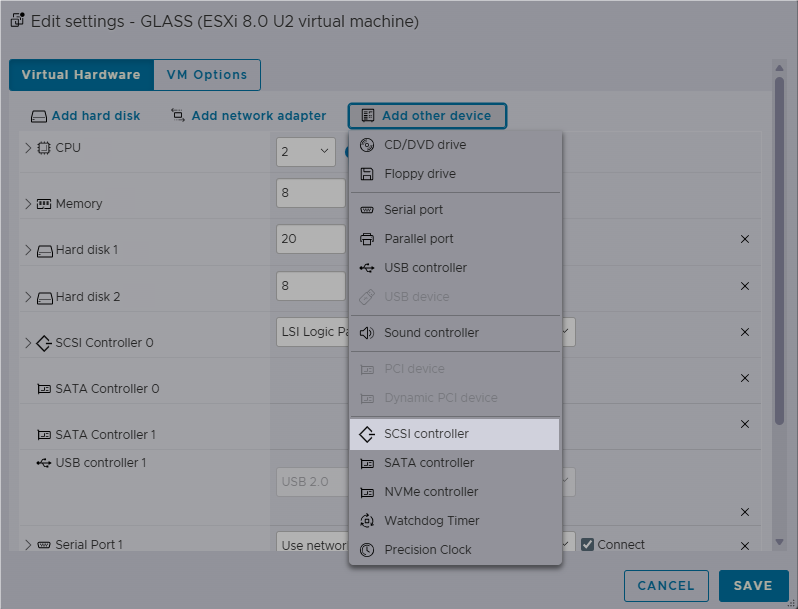
Click the Add other device button and choose SCSI Controller. A New SCSI Controller will appear in the list of categories.
-
From the drop-down menu next to the New SCSI Controller section, select VMware Paravirtual.
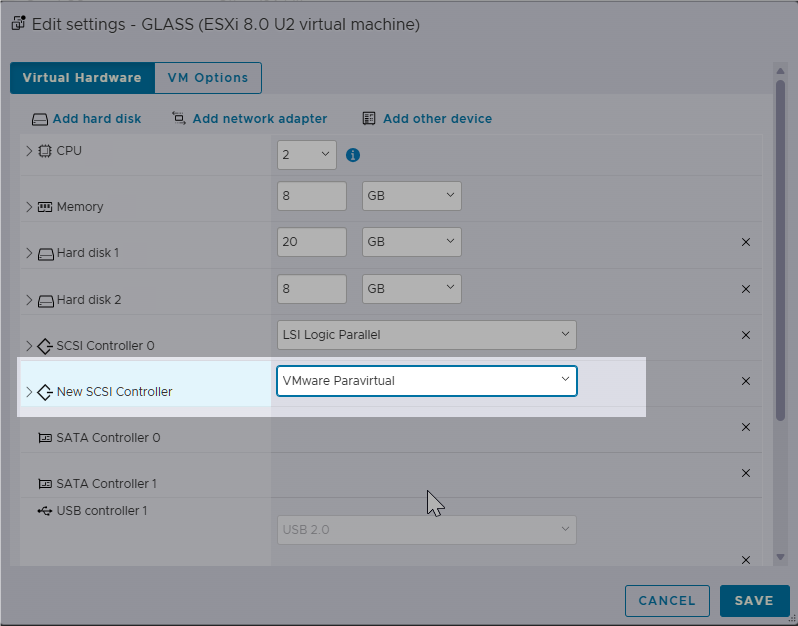
What is now displayed as New SCSI Controller will be named SCSI Controller n in your ESXi VM configuration, where n is the next available controller number. If your system already has two controllers configured (for example, SCSI Controller 0 and LSI Logic Parallel Controller 1), the next one you create will be SCSI Controller 2.
Note
You can add a maximum of four SCSI controllers regardless of their type and up to 15 SCSI disks per controller.
-
Expand the existing Hard Disk section.
Optionally, if you wish to create another disk, click Add hard disk and choose New standard hard disk. A New Hard Disk will appear in the list of categories.
-
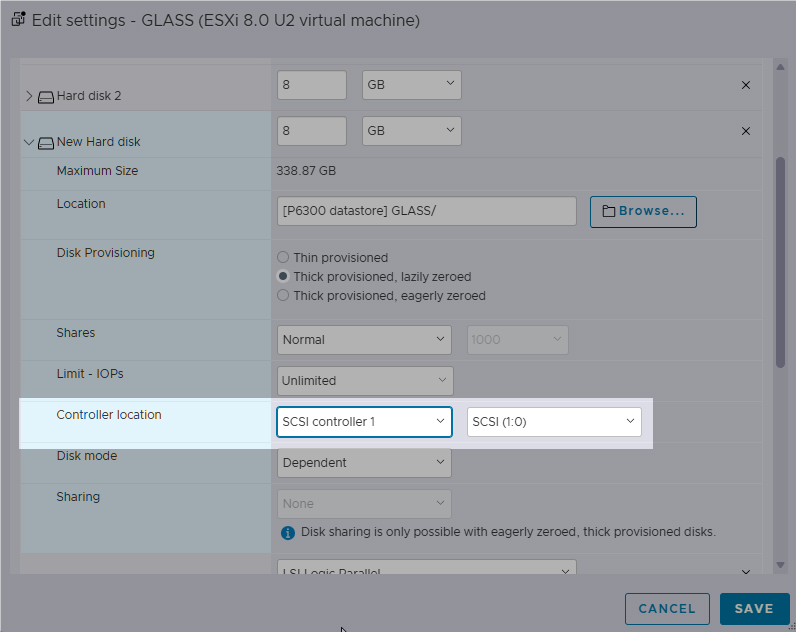
In the Hard disk section where you wish to assign your SCSI controller, scroll down to the Controller location setting and choose the newly added SCSI Controller (see Step 2).
-
Click Save. The VMware Paravirtual SCSI controller is now assigned to the selected device.
Verification on OpenVMS
Boot OpenVMS and execute the appropriate command to see the devices used by the system. PVSCSI disks appear as standard OpenVMS storage devices and follow the naming convention specified below.
-
To list the disk devices, issue
SHOW DEVICES DK. -
To list the controller devices, issue
SHOW DEVICES PK.
For example:
$ SHOW DEVICES DK

Device                  Device           Error   Volume          Free  Trans Mnt
 Name                   Status           Count    Label         Blocks Count Cnt
X86$DKC0:               Online               0
X86$DKC1:               Online               0
X86$DKC2:               Online wrtlck        0

$ SHOW DEVICES PK

Device                  Device           Error
 Name                   Status           Count
PKB0:                   Online               0
PKC0:                   Online               0
PKD0:                   Online               0
Note that, for example, 0 in PKB0: corresponds to the number of the SCSI controller.
For information on OpenVMS device naming conventions, refer to the Device Name article.