Adding OpenVMS Certificate to the Machine Owner Key Database
In order to boot VSI OpenVMS with Secure Boot enabled, you must register the OpenVMS key in the Machine Owner Key (MOK) database.
There are two methods to do so: manual and automatic. For automatic registration, ensure that OpenVMS has been booted at least once before enabling Secure Boot.
-
Enable Secure Boot as described in the Secure Boot Option section and start your virtual machine.
-
The UEFI key management utility will load. You will see a countdown at the bottom of the screen. Press Enter before it runs out and the system starts booting.
-
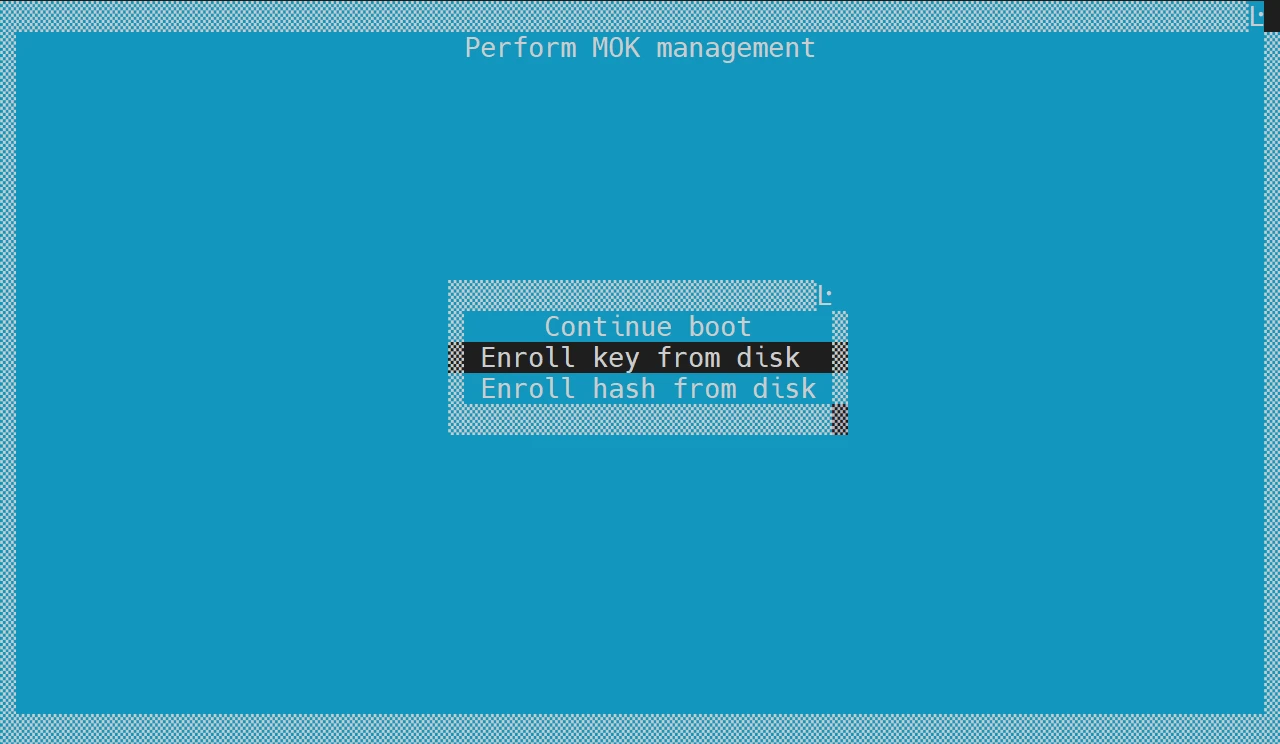
Use the arrow keys to select Enroll key from disk and press Enter.
-
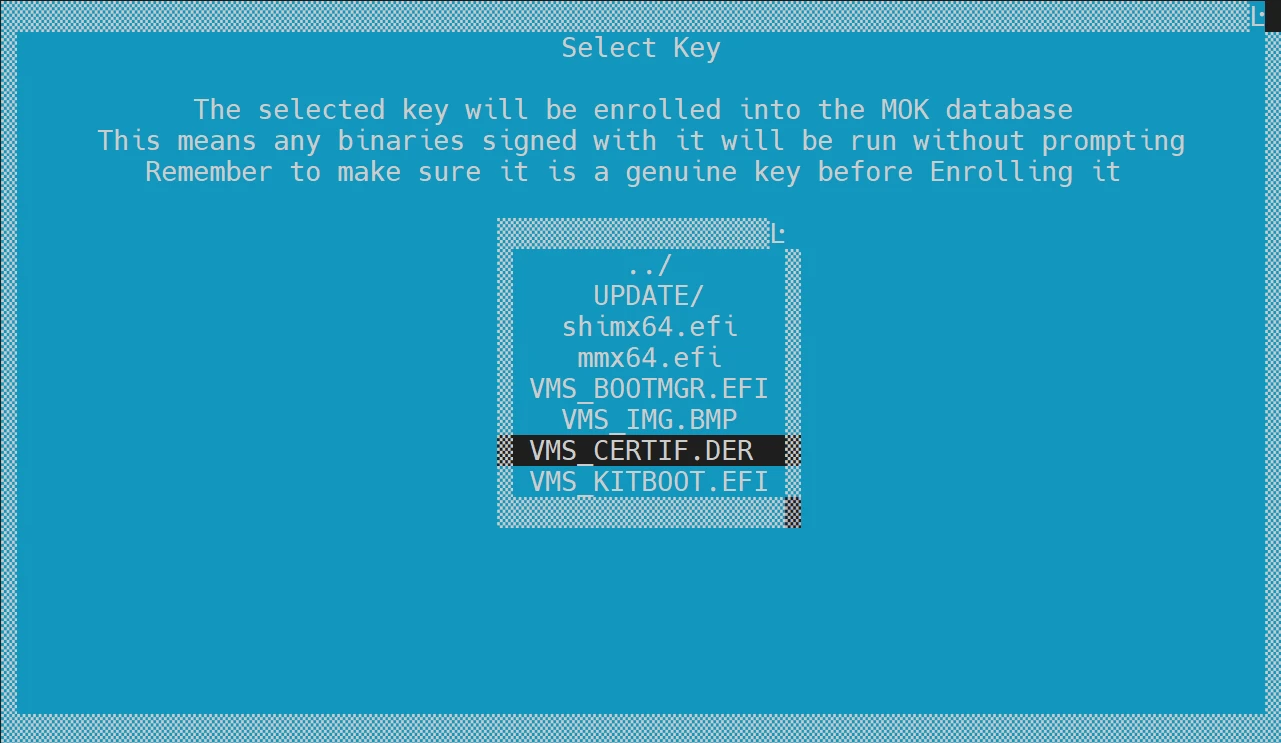
Locate the VMS_CERTIF.DER file at the following path: your-disk/EFI/VMS/VMS_CERTIF.DER.
-
Select Continue.
-
At the Enroll the key(s)? prompt, select Yes.
-
Select Reboot.
-
Now you will be able to boot to the OpenVMS Boot Manager with Secure Boot.
The OpenVMS Boot Manager automatically registers the certificate when the First Stage Bootloader is present.
-
Boot OpenVMS with Secure Boot disabled so that the certificate is registered automatically.
-
Shut down OpenVMS.
-
Enable Secure Boot in the UEFI as described in the Secure Boot Option section.
-
You will now be able to boot to the VSI Boot Manager with Secure Boot enabled.